Imgupscaler

Resolution guide

Using imgupscaler 4k for sharper-looking images

An imgupscaler 4k workflow starts with the size and quality of your source, not a promise that every small picture can become detailed UHD artwork. Use Imgupscaler to plan the image you need, then check the available export dimensions in the tool before committing to a project.

Check available export sizes
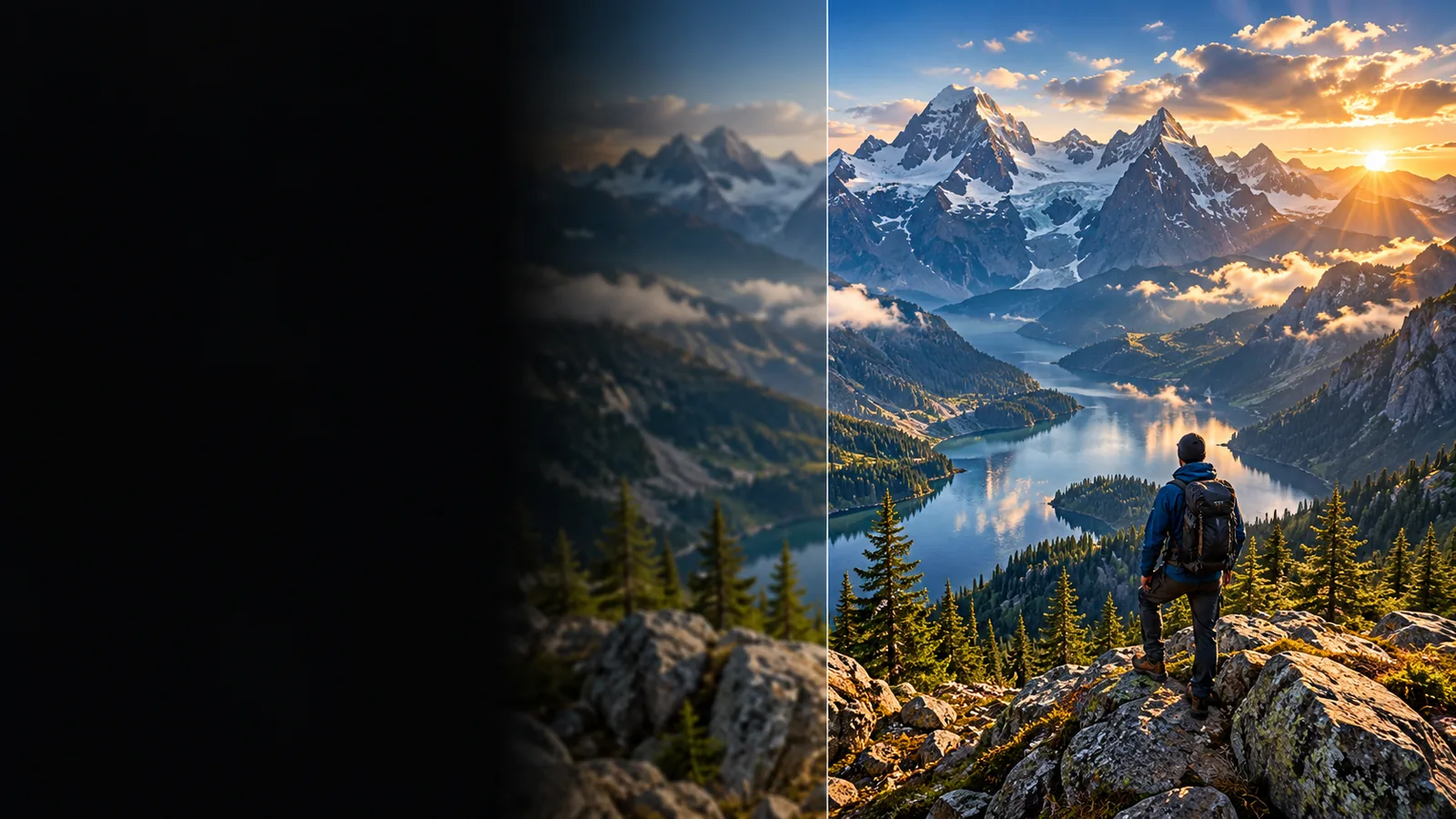
Imgupscaler landing-page image preview

This entry point versus the general one

A resolution-first brief helps when you already know where an image will appear. If your main goal is a different kind of edit, choose the more relevant route.

Three decisions this resolution-first route brings forward

A UHD target makes you decide on framing, visible detail, and viewing distance before you judge the result. These examples show why the intended use matters.

Presentation designer

A title image will fill a wide conference display. The designer leaves space for text and checks the crop at the display's aspect ratio.

A well-composed source is more useful than an enlarged image with important details cut off.

imgupscaler ai

Video editor

A still image will appear inside a UHD timeline. The editor checks how long viewers will see it and whether the shot needs a pan or zoom.

The still can be assessed in context, without assuming an image workflow will enhance video frames.

imgupscaler video

Archive curator

A small monochrome scan is headed for a large digital display. The curator separates the request for color from the request for size.

Each change can be reviewed against the original rather than mistaken for recovered historical detail.

imgupscaler colorize

Online shop owner

A product image needs to sit beside close-up photographs on a large screen. The owner checks the edges, label text, and background at the intended viewing size.

A weak source can be replaced with a better photograph before enlargement makes its flaws more conspicuous.

imgupscaler ai

How to start with a UHD target

Work from the final use backward. A display specification tells you the canvas size, but it does not tell you whether your source contains enough detail.

  1. 1

    Write down the destination

    Confirm the display or project's required dimensions and aspect ratio. Standard UHD is 3840 × 2160 pixels; a differently shaped layout may need a crop.

  2. 2

    Inspect the source

    Open the original at its actual pixel size. Check focus, compression, small text, faces, and fine patterns before deciding whether to enlarge it or find a better source.

  3. 3

    Create and verify

    Describe the intended image clearly, follow the tool's available workflow, and inspect its actual export options. Compare the saved result at normal viewing size and at a close zoom.

A size target is not a quality guarantee

General image brief UHD-focused brief
Starting question What should the image show? Where will the image be displayed, and how large?
Canvas planning Choose a composition that suits the subject. Check the destination's dimensions and aspect ratio first.
Source review Check that the subject and colors work. Also inspect fine detail, compression, and focus.
Cropping Adjust framing for appearance. Protect essential content from the final screen crop.
Success check Judge the image in its intended context. Judge it both on the target display and close up.
Export assumption Confirm the format and size the tool offers. Verify that the available export meets the project's UHD requirement.

Limits of planning for 4K

Imgupscaler can help frame a resolution-conscious task, but a requested size alone cannot establish what the connected tool will produce.

1

Missing detail stays uncertain

Enlarging a blurred face or unreadable label cannot reliably recover the exact information that was never captured.

What to do instead

Start with a sharper original or reshoot the subject when accuracy matters.

2

An export size is not assured

This page does not establish that the connected tool offers a 3840 × 2160 export for every image or workflow.

What to do instead

Check its current output options before relying on it for a fixed delivery specification.

3

A wider canvas may change the crop

A square or portrait source will not automatically fill a 16:9 screen without trimming content or leaving space around it.

What to do instead

Prepare the composition for the final aspect ratio and preview it on the intended layout.

4

Pixels do not prove authenticity

Added or generated detail may look convincing while differing from the original subject, especially in records and product imagery.

What to do instead

Keep the source and compare critical details against it before publishing.

Take your image brief into the tool

Describe the subject and its intended display, then inspect the available output before using it in a UHD project. If the export or fine detail falls short, revise the source or the brief rather than treating the pixel count as proof of quality.

Start with the destination in mind

  • Check the final crop
  • Inspect important details
  • Verify export dimensions
Create my image

Frequently asked questions about 4K images

For a standard UHD display, the relevant canvas is 3840 × 2160 pixels. Other uses of the term 4K can have different dimensions, so check the specification for your particular screen or project.

No. A larger file can still show blur, compression blocks, or guessed fine detail from a weak source. Check the original first and compare any result at the size at which people will see it.

Not necessarily. Focus, composition, color, and source quality all affect the result. A clean smaller image may look better than an enlarged, heavily compressed one.

No. A still image involves one composition, while video introduces frames, motion, and consistency over time. Check the requirements of the footage separately rather than assuming an image result applies to video.

Confirm the saved file's pixel dimensions and preview it in the final aspect ratio. Inspect text, edges, faces, and other important details at normal viewing distance as well as close up.

Upscale an image
Upscale an image