Imgupscaler

Image quality guide

What can imgupscaler ai do for a small image?

Use imgupscaler ai as a starting point when an image needs more than a larger pixel count. AI enhancement can suggest plausible detail, but it cannot recover information that was never captured.

Free to start · no signup
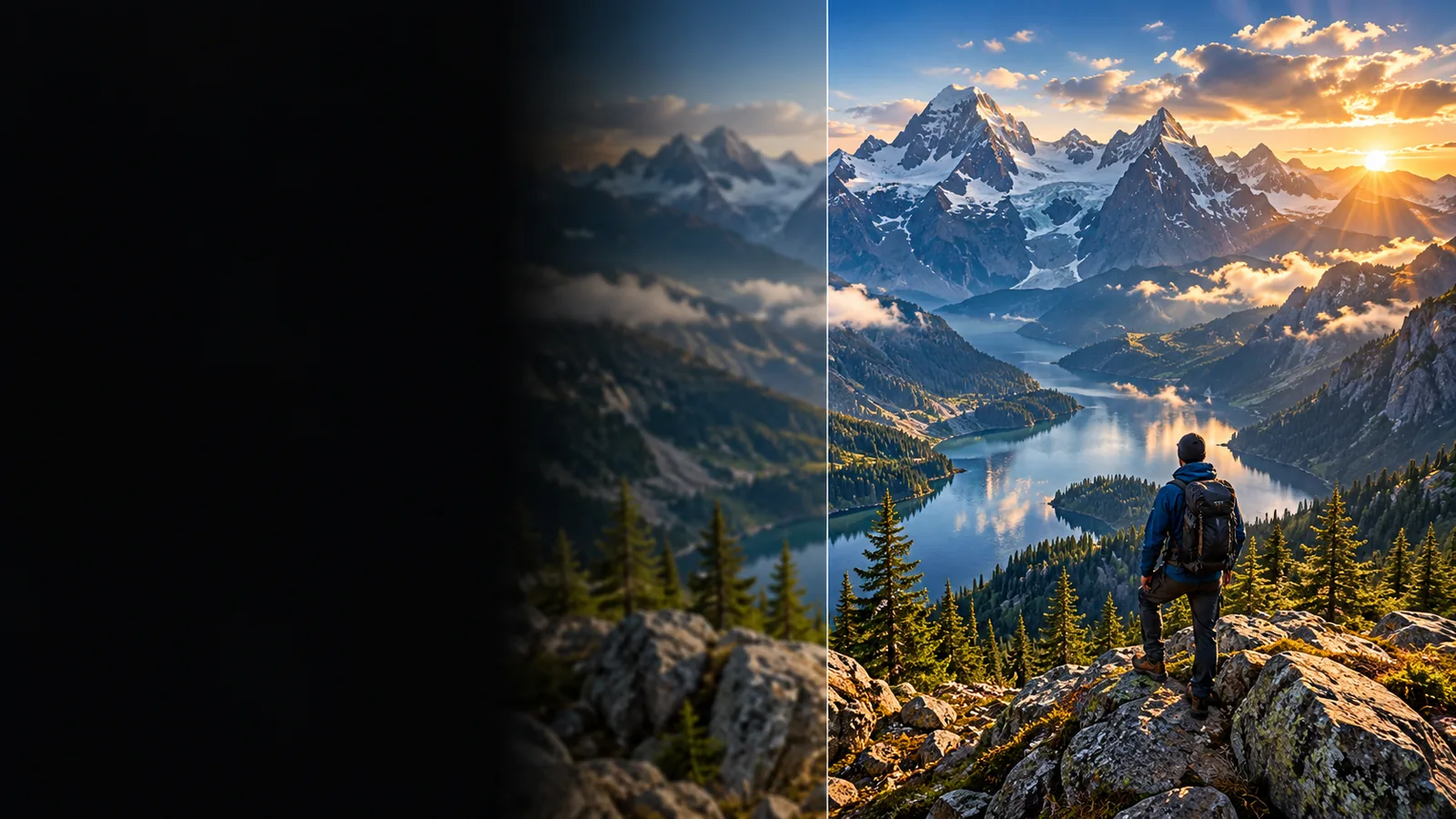
Imgupscaler image enhancement visual

This entry point vs the general one

Ordinary resizing changes an image's dimensions. AI-assisted enhancement attempts to make the enlarged result look clearer, which introduces both possibilities and uncertainty. The detailed comparison appears below.

The three things that distinguish AI enhancement

AI methods can propose texture, soften visible compression artifacts, and make some edges appear more coherent. None of these changes should be mistaken for proof of what the original scene contained.

Portrait keeper

A small family portrait looks soft when displayed larger. Imgupscaler-style enhancement may produce smoother transitions around hair and clothing, but eyes and expressions deserve a careful check.

Aim for a natural-looking display copy while preserving the untouched original.

imgupscaler colorize

Online seller

A product photo has blocky edges from an older, heavily compressed export. An AI pass may reduce their appearance, although it cannot establish the product's true surface finish.

Compare the result with the actual item before publishing.

imgupscaler 4k

Illustrator

A compact illustration needs to fit a larger layout. AI processing may make broad outlines look more continuous, while fine lettering or deliberate pixel art can change unexpectedly.

Inspect the artwork at its intended display size and retain a version without enhancement.

imgupscaler 4k

Video editor

A thumbnail taken from footage appears soft. Enhancing that still may help its presentation, but it says nothing about consistency across the full sequence.

Treat the thumbnail as a separate image rather than assuming the same result for video.

imgupscaler video

How to start

Begin with the best source you have. The cleaner the original, the easier it is to judge whether enhancement actually helps.

  1. 1

    Choose an original

    Find the least-compressed version of the image, not a screenshot of a preview. Keep an untouched copy so you can compare it with any Imgupscaler result.

  2. 2

    Describe the intended change

    State what matters most: natural skin, readable product edges, or faithful illustration lines. If the destination offers an image workflow, check its available controls before proceeding; a written description alone does not guarantee a particular effect.

  3. 3

    Review before using

    Compare faces, text, logos, and repeating patterns against the source. Zoom in to find invented marks, then zoom out to decide whether the image looks better at its final display size.

Limits

AI enhancement is an interpretation of visible pixels, not a way to retrieve a lost original. Treat surprising new detail as a reason to inspect the output, not as evidence that it is accurate.

1

It cannot verify missing detail

A blurred face, distant sign, or obscured object does not contain enough information to confirm an AI reconstruction. An apparently crisp result may still be wrong.

What to do instead

Use a higher-quality source or leave uncertain details visibly soft.

2

It cannot guarantee faithful text

Tiny labels and embedded lettering may become cleaner-looking but less accurate after enhancement. This matters for packaging, diagrams, and archival material.

What to do instead

Check characters against the original and recreate critical text separately.

3

It cannot fix every source problem

Severe motion blur, clipping, heavy compression, and poor focus can persist or turn into artifacts. A larger file is not automatically a better photograph.

What to do instead

Reshoot or locate the original export when accuracy matters.

4

It cannot establish usage rights

Changing image detail does not change who owns the source image or whether it may be published.

What to do instead

Confirm permission for the source and intended use before sharing the result.

Limits in a side-by-side reference

General image resizing AI-assisted enhancement
Primary aim Change pixel dimensions. Improve the apparent quality of a larger image.
New visual detail Interpolates between existing pixels. May propose textures or edges not evident in the source.
Faithfulness Generally retains the source's visible structure. Requires inspection for plausible but inaccurate changes.
Soft portraits Makes the portrait larger without resolving its softness. May look clearer, but facial details can be altered.
Small lettering Often remains difficult to read. Can appear sharper without becoming correct.
Best reason to choose it You need different dimensions with minimal interpretation. You can review the output and accept some interpretive change.

Decide from the result, not the label

Bring your best available source and compare the outcome with it. Imgupscaler is most useful as a way to evaluate the image you actually have; keep the original if fidelity matters more than apparent sharpness.

See whether enhancement helps your image

  • Keep an untouched source copy
  • Inspect faces, lettering, and edges
  • Judge the result at its intended size
Explore image tools

Its own FAQ

AI-assisted methods may propose textures and edge detail when enlarging an image, rather than only interpolating between existing pixels. Those additions can improve appearance, but they are estimates and should be checked against the source.

No method can confirm details that the source never recorded clearly. An enhanced result may look convincing while changing a face, object, or letter, so keep the original for comparison.

No. Ordinary resizing is often preferable when you need predictable dimensions and want to avoid invented detail. AI enhancement is worth comparing when apparent softness is the main problem and you can review the result.

Not necessarily. Output dimensions describe the number of pixels, not whether important details are accurate or visually clear. View the image at its intended size and inspect problem areas before using it.

Upscale an image
Upscale an image