Browser image workflows
Find the best free online image upscaler for your image
The best free online image upscaler is the one that improves your particular image without adding distracting artifacts or hiding a limit you need to know about. Imgupscaler helps you assess the task before you choose a browser-based workflow.
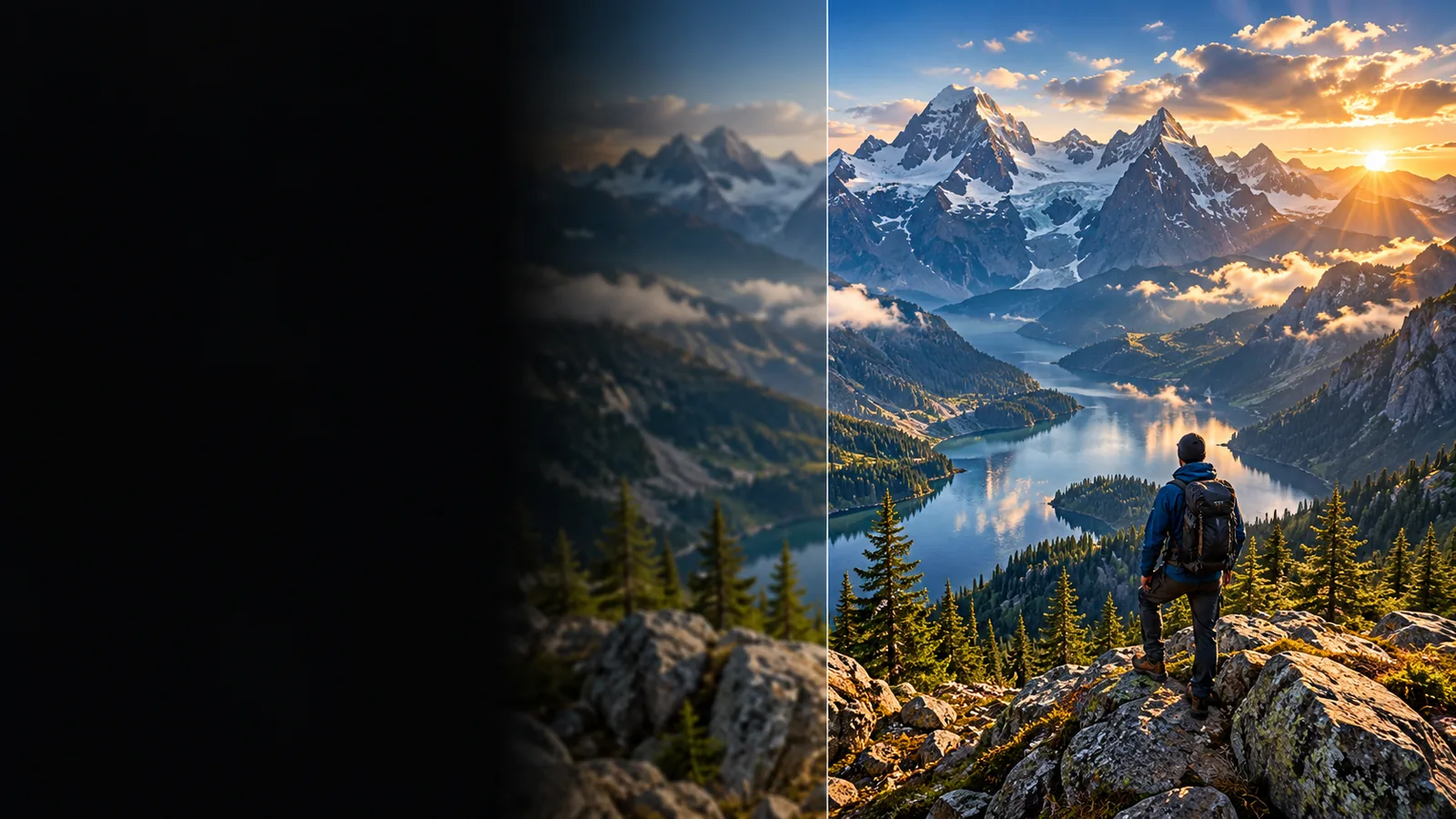
Three quality checks
How to assess an online result
A larger file is not automatically a better image. Judge the output against its intended use, not its dimensions alone.
-
1
Identify the weak detail
Look at faces, lettering, product edges, or fine texture in the original. Note whether the problem is low resolution, blur, compression, or missing content; each calls for a different approach.
-
2
Match the workflow
Use enlargement when the existing composition must stay intact. If a fresh visual would work better, describe the subject and style for image creation instead; that will not preserve the source pixel for pixel.
-
3
Inspect the useful size
View the result at the size your audience will see. Check small text and repeated patterns closely, then compare the output with the original before using it in a post, presentation, or print layout.
Related decisions
Choose your next image task
These Imgupscaler guides address different questions that can arise while choosing an online workflow.
- image upscaler free See which access terms and output restrictions to check before relying on a free option.
- imgupscaler ai Understand how AI-assisted reconstruction differs from simply enlarging an image.
- imgupscaler 4k Work out whether a 4K-sized file would provide useful detail for your intended display.
Workflow comparison
Check the trade-offs step by step
An online image workflow favors access from a browser; a local editor favors direct control over files and adjustments. Neither guarantees a better result.
| Browser-based workflow | Local image editor | |
|---|---|---|
| Starting point | Open a website and check its available image actions. | Install or open an editor on your device. |
| Source image | Uploading may be required, depending on the tool. | A file can remain on your device during editing. |
| Adjustments | Controls vary by service and may be limited. | Often offers more direct, repeatable adjustment. |
| Connection | Typically needs an internet connection. | Some editing tasks can run offline. |
| Output quality | Depends on the source and the service's processing. | Depends on the source, method, and editor settings. |
| Access terms | Check current limits, export options, and terms. | Check the editor's license and supported features. |
Honest limits
Where online enlargement falls short
Imgupscaler cannot make every small source suitable for every use. These limits matter most when the image contains information that must remain exact.
Missing detail stays uncertain
An upscaler may invent plausible texture, but it cannot recover information that was never captured in the source.
What to do instead
Use a higher-resolution original when factual accuracy matters.
Text may become unreliable
Tiny labels and signs can look sharper while their letters change or become harder to verify.
What to do instead
Compare every word with the source, or typeset important text separately.
Free access may have conditions
Online tools can differ in file-size limits, export options, usage rights, and account requirements.
What to do instead
Read the current terms of the specific tool before uploading or committing to a workflow.
Upload privacy is tool-specific
A browser-based service may process an uploaded image remotely; its retention practices cannot be assumed.
What to do instead
Check its privacy policy, or use a local editor for sensitive files.
Move forward with a clear image brief
If recreating a visual is acceptable, describe the subject, edges, texture, and background you need. If you must preserve an existing photo exactly, check that the destination offers an appropriate enlargement workflow before sending it.
Make the next image count
- Decide whether to enlarge or recreate
- Inspect details at the intended display size
- Verify the destination's current terms
Online image upscaling questions
Test a representative image rather than judging a tool by its sample gallery. Compare fine edges, faces, and text at your intended viewing size, then check its current export and access terms. A tool that suits an illustration may not suit a document scan.
It may make some edges look clearer, but blur and low resolution are different problems. Detail lost through motion or incorrect focus cannot be reliably restored. Keep the original so you can judge whether the result remains faithful.
No. Increasing pixel dimensions can make an image fit a larger layout, but it does not guarantee that faces, text, or textures are accurate. Inspect the areas that matter instead of relying on the output dimensions.
Check that specific service's privacy policy and retention terms before uploading. If the image contains confidential or personal information and you cannot verify how it will be handled, consider an offline editing workflow.